How to Install Bundler
Step 1: Find Bundler in the Marketplace
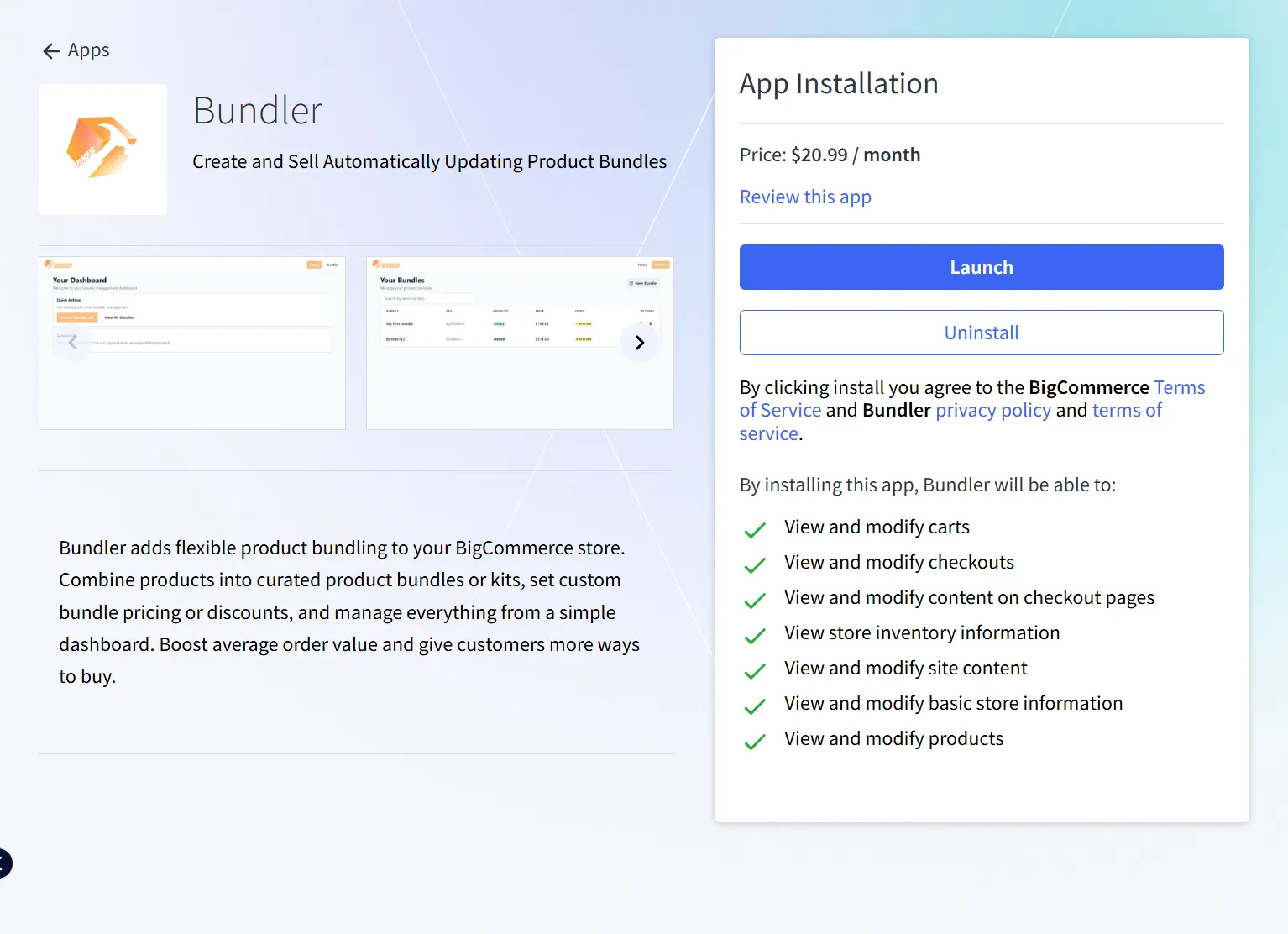
Log in to your BigCommerce control panel, go to Apps > Marketplace, search for Bundler.
Step 2: Install the App
Click Get this App, then Confirm. BigCommerce will redirect you to authorize Bundler’s access to your store.
Step 3: Authorize Permissions
Review the requested permissions (products, orders, storefront). Click Confirm to grant access.
Step 4: Set Up Your First Bundle
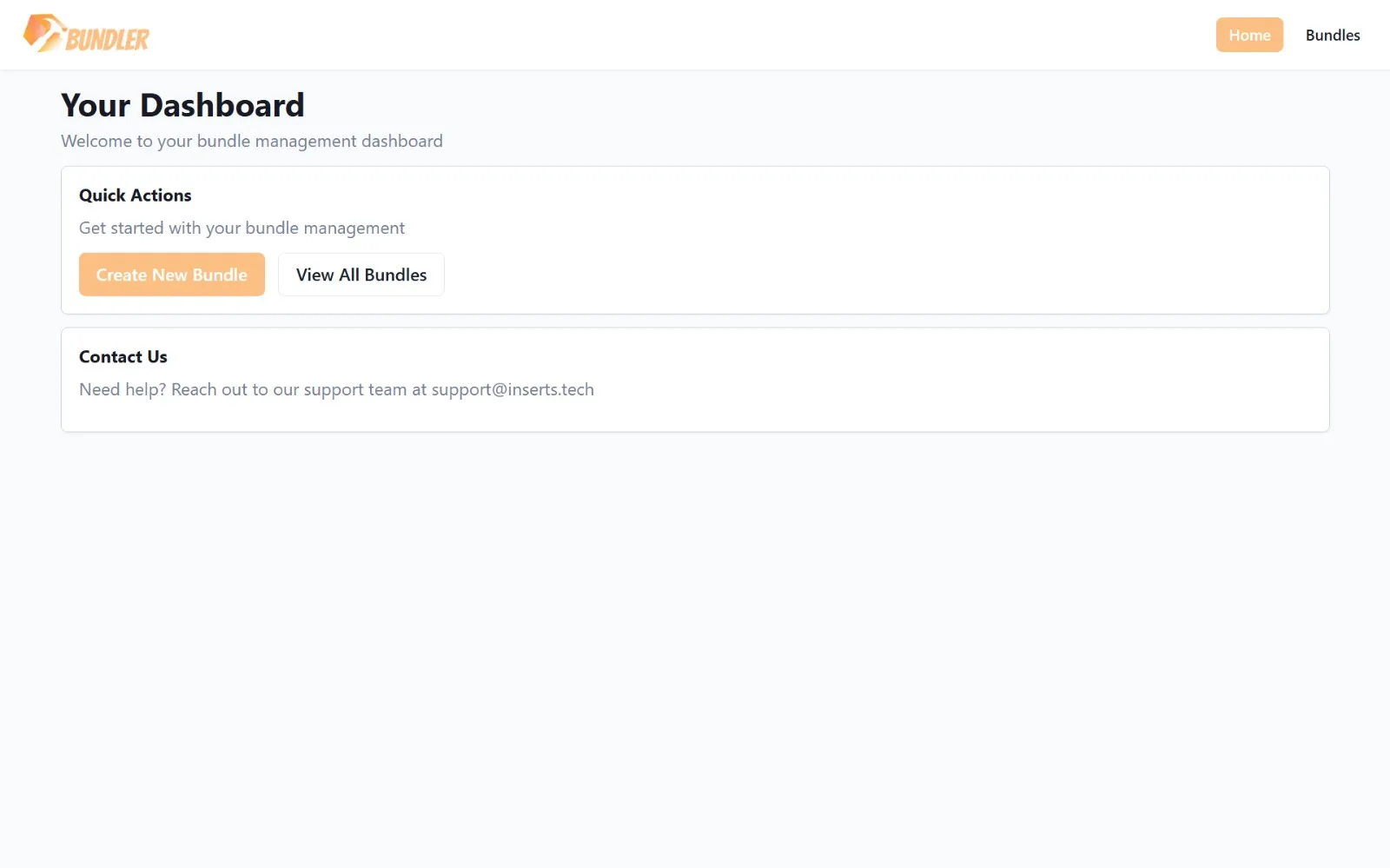
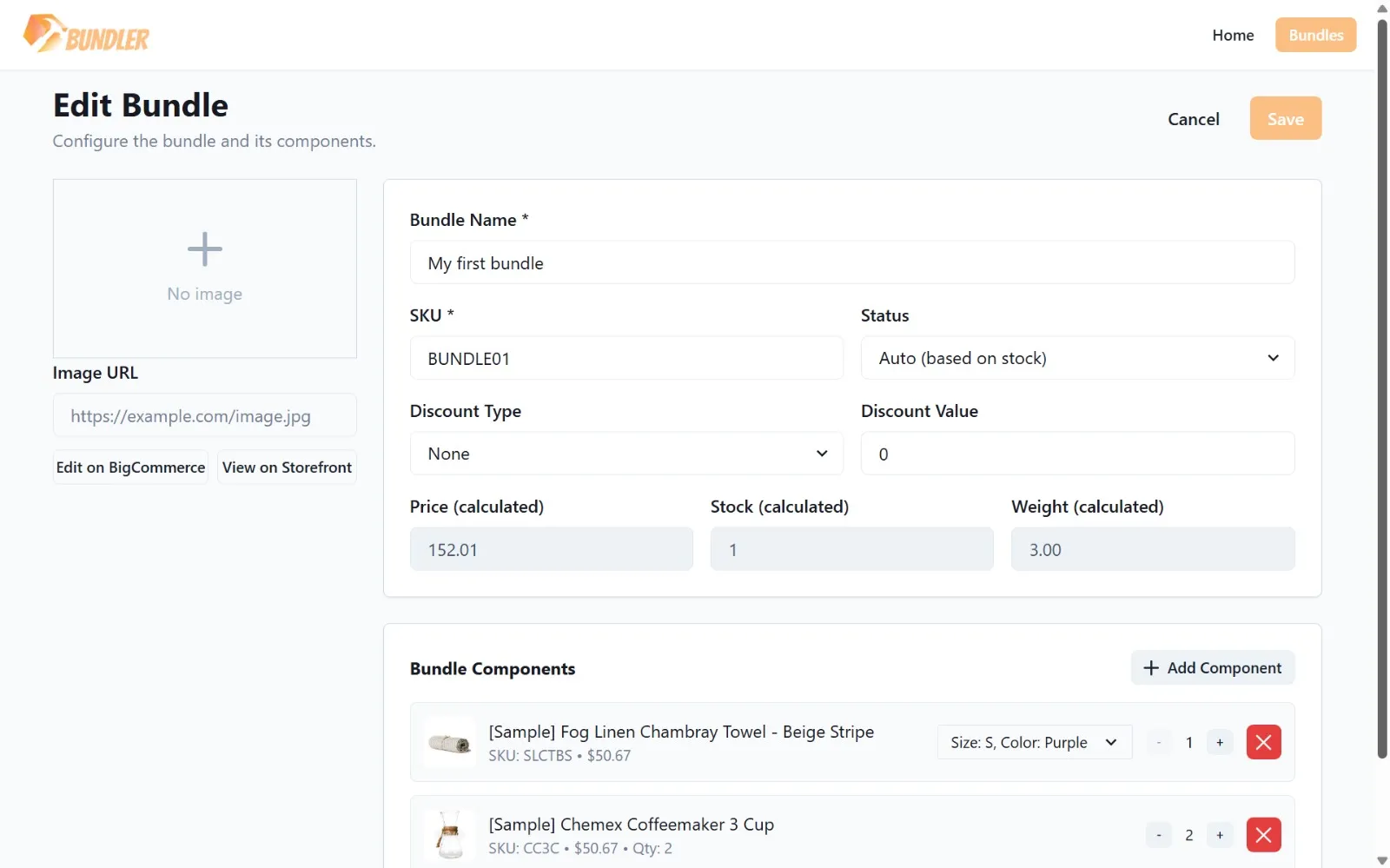
Once installed, open Bundler from your BigCommerce Apps menu. Click Create Bundle, select products to group, set pricing, and save.
Step 5: Publish
Press “Save” to publish your bundle. Make sure you have set your Status to “Auto” or “Visible” to ensure the product is shown on your store! NOTE: The bundle is created as a separate BigCommerce item in your store. Feel free to edit this item however you wish, i.e. adding images, adding a description, e.t.c
Troubleshooting
- App not showing after install: refresh control panel, check Apps > My Apps.
- Bundle missing from store: confirm bundle status is set to Visible, or Auto and has stock.
Need help? Contact support at support@inserts.tech.